We use a few small files called cookies. They keep you signed in, remember the area you chose and show prices in your own money. We do not use them for ads or tracking. What each one does
Schedule shows one day across all your courts, with the month beside it. Team members can see it too.
Open Schedule. Use the arrows to move one day at a time, or press Today to come back. On a phone you can also press a day in the week under the date.
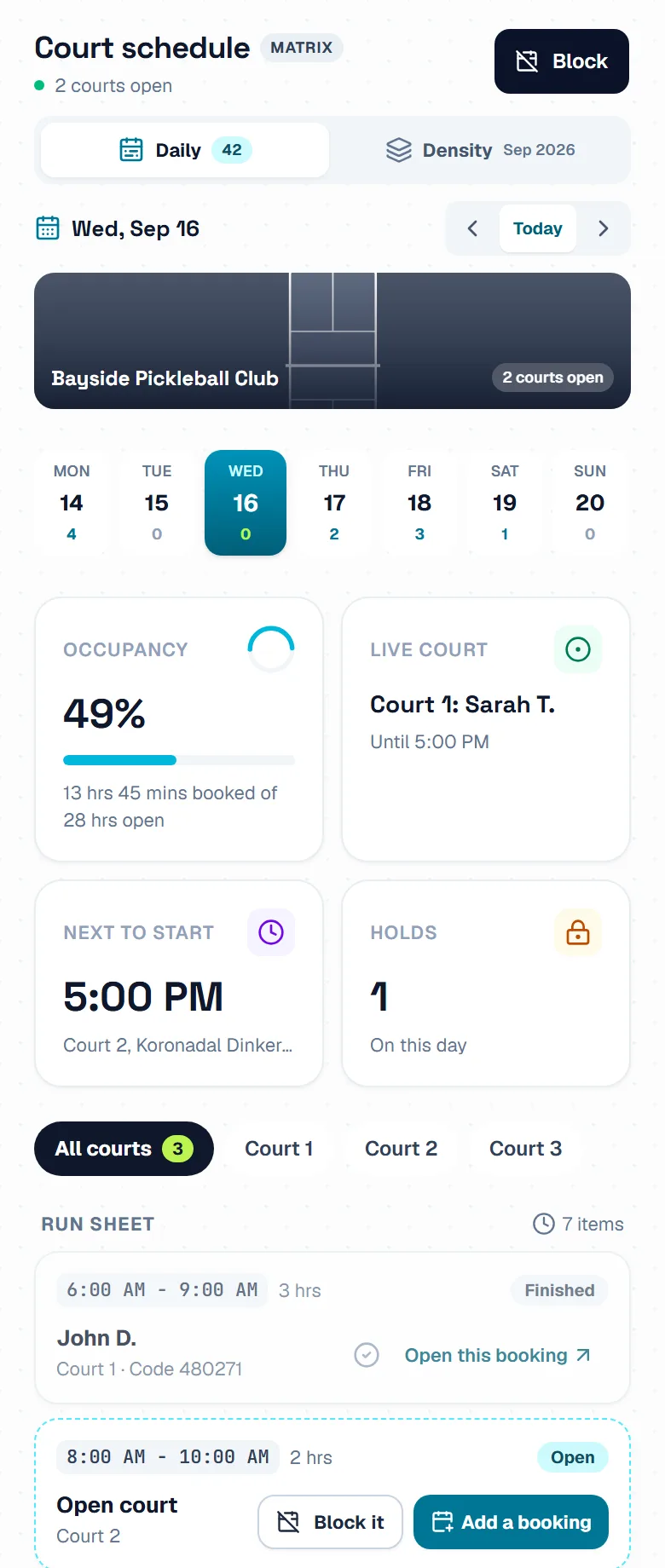
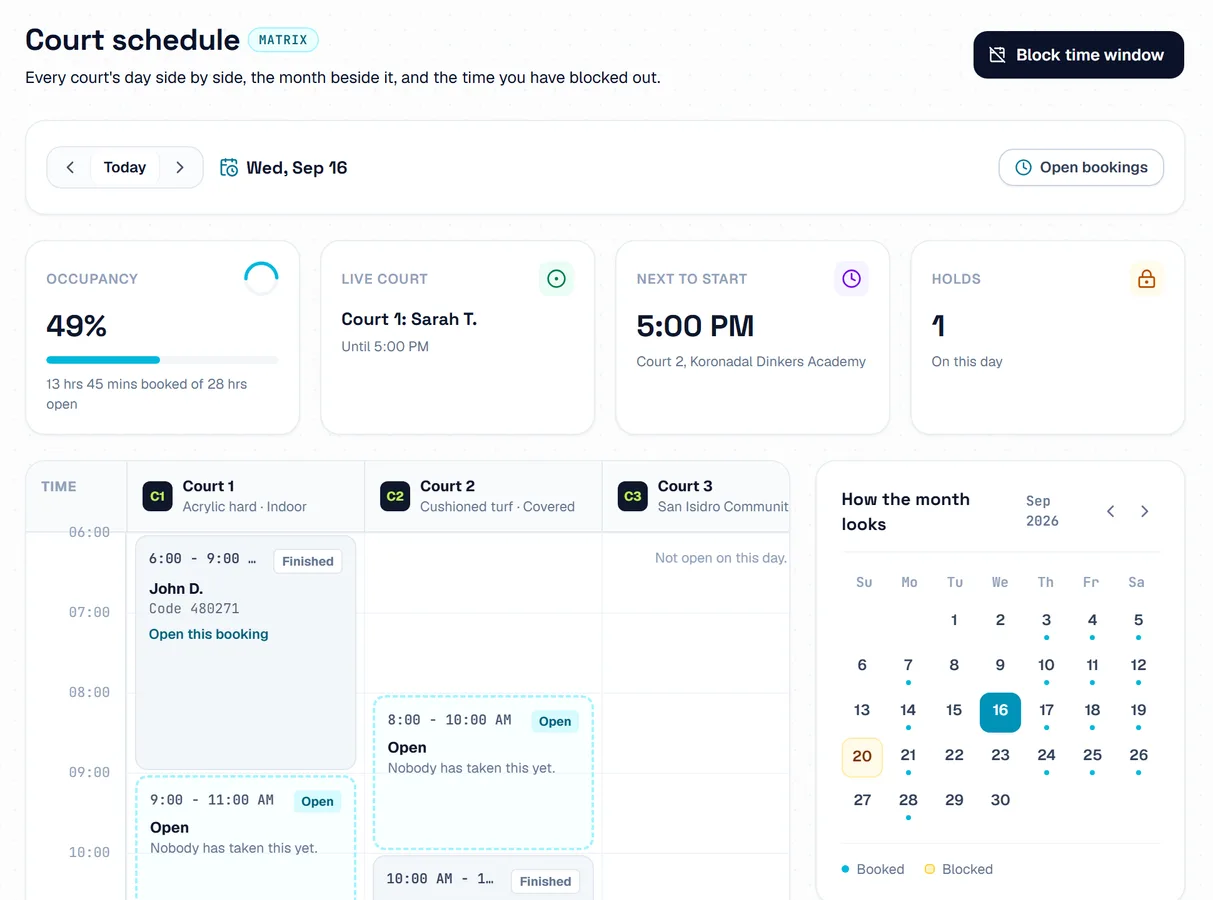
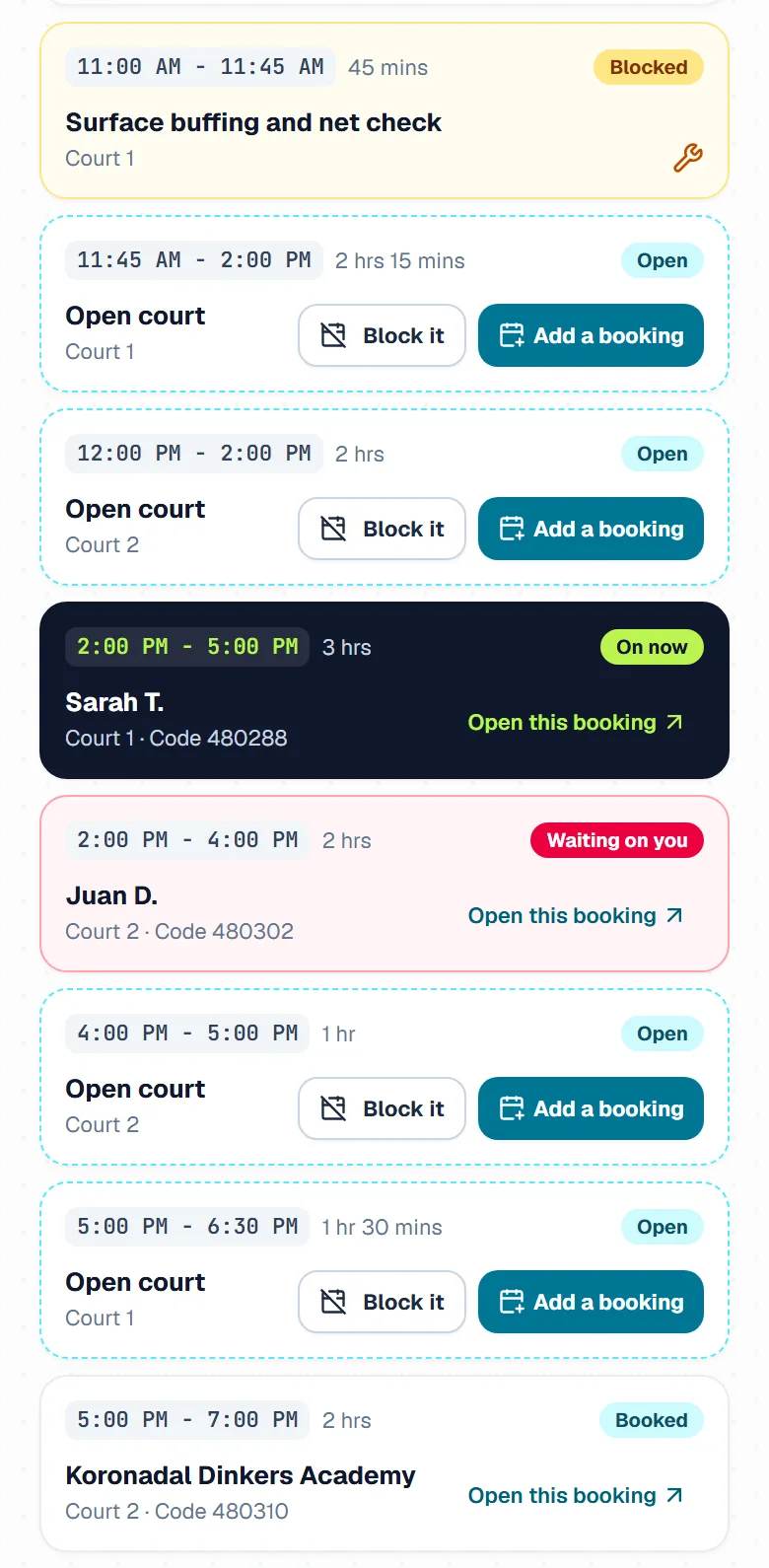
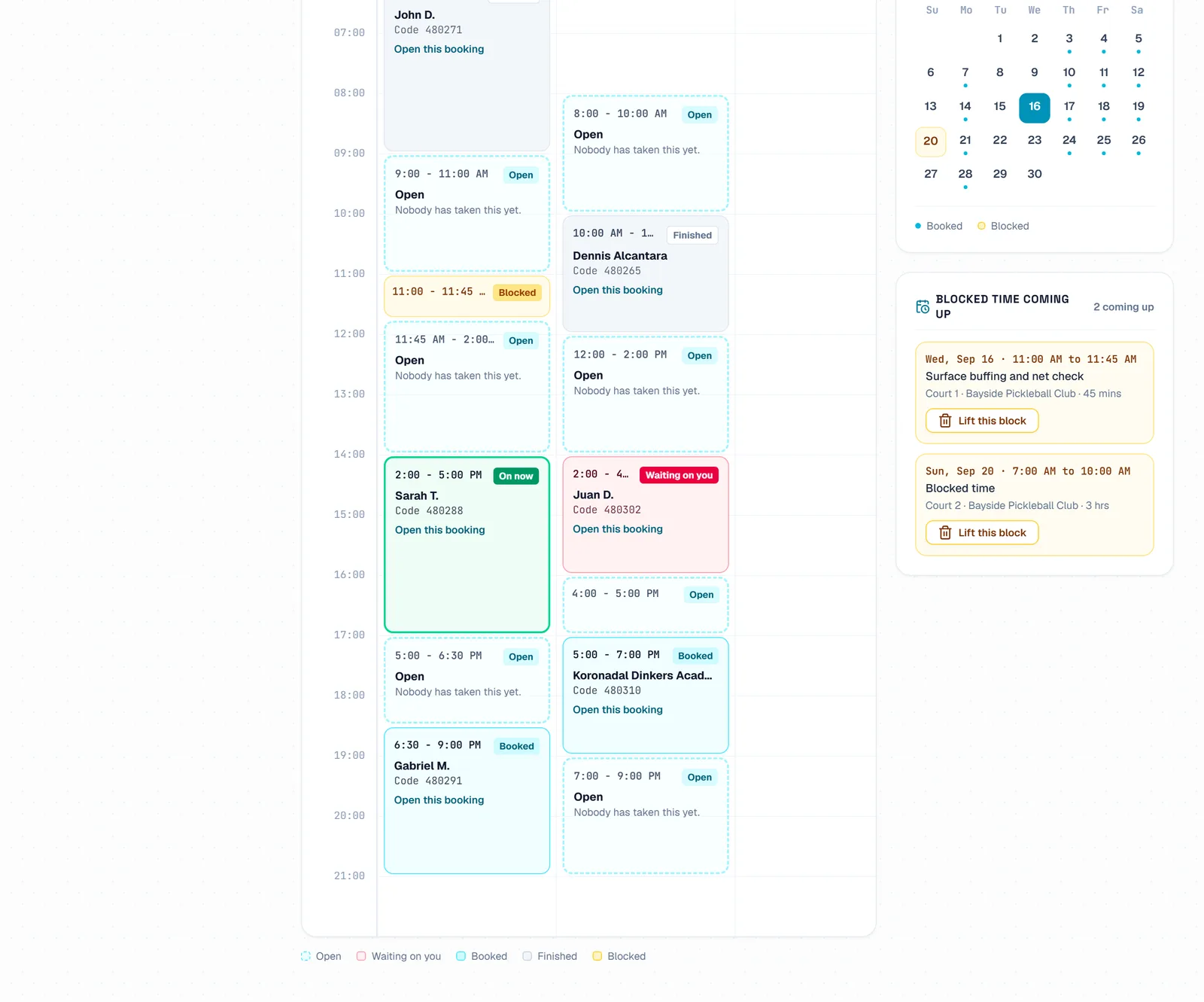
On a computer each court has its own column. On a phone the Run sheet lists everything in time order, with the court under each name. Each time says what it is: Open, Waiting on you, Booked, On now, Finished or Blocked.
The boxes at the top sum up the day. Occupancy is how much of the open time is taken: booked, blocked or waiting on you. Live court shows who is on court now, Next to start shows the next booking, and Holds shows how many blocks there are.
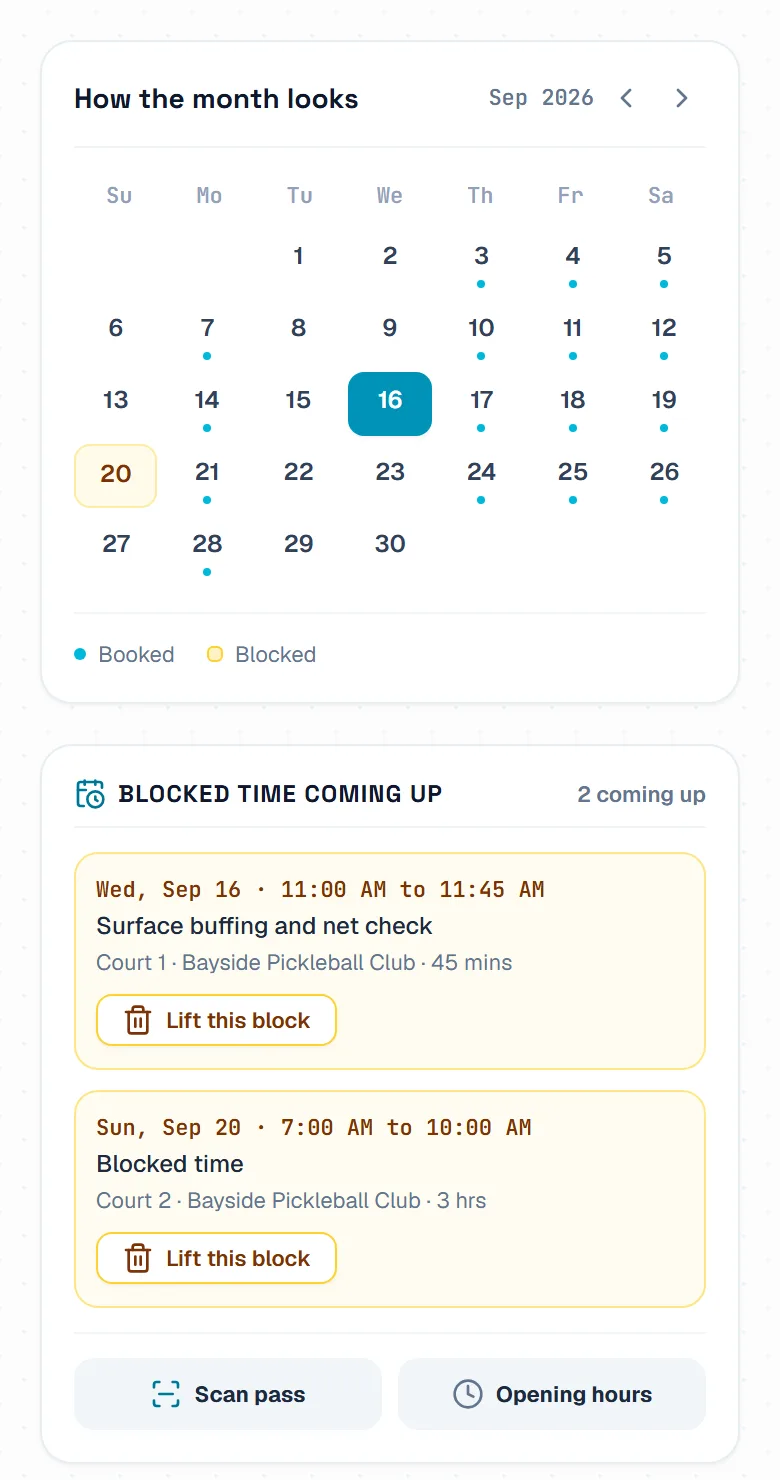
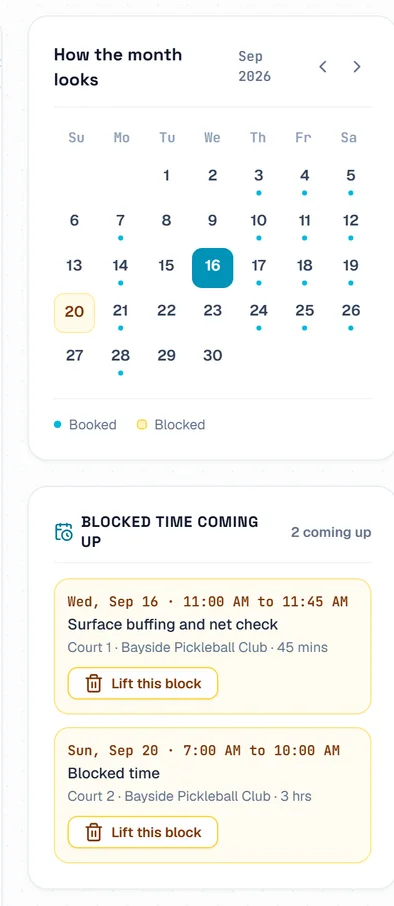
On a computer the month sits beside the day. On a phone, press Density. A dot under a day means bookings, a yellow day has blocked time, and pressing a day opens it.
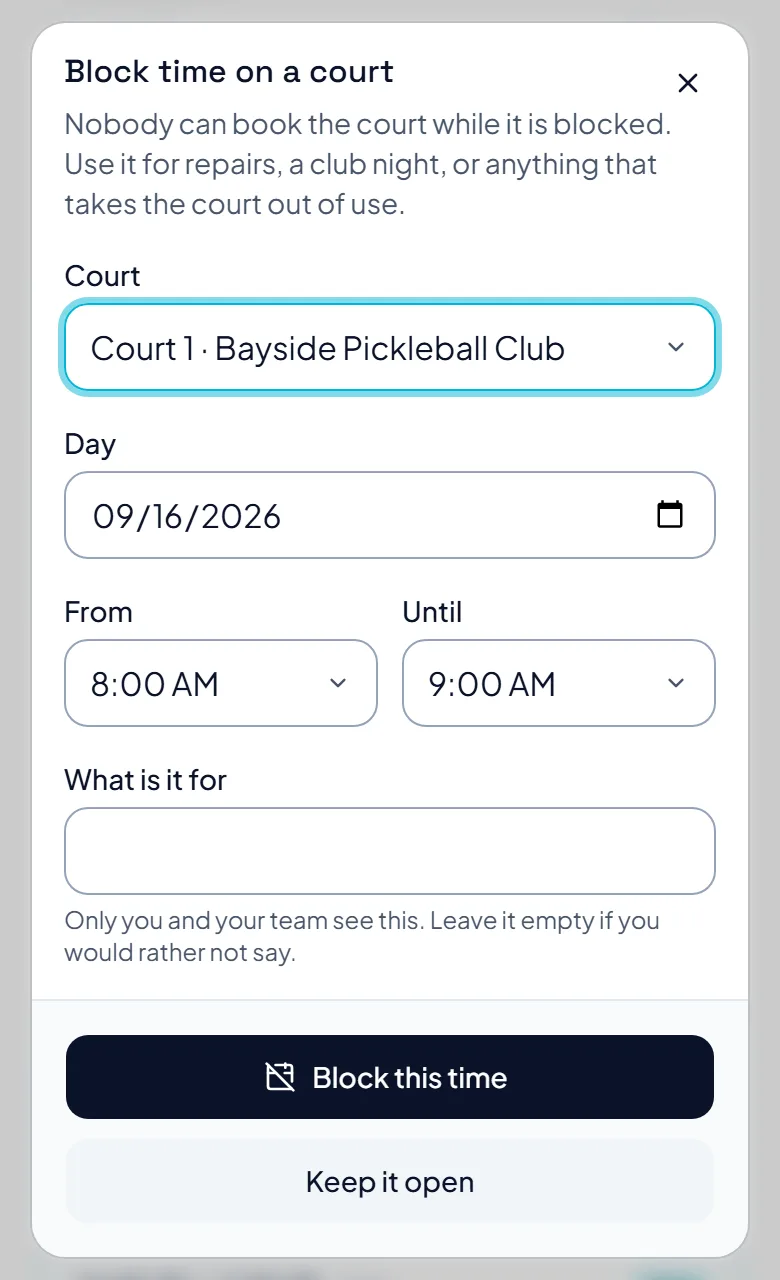
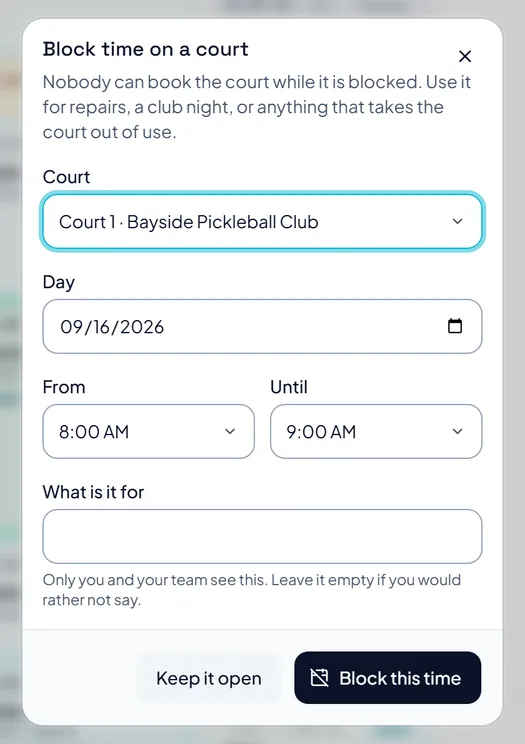
Press Open this booking to find it in Bookings, where you can answer a request. On a phone, each open time has Add a booking, and Block it, which fills in that court and time for you. At the top, press Block time window, or Block on a phone.
The pictures show example courts and players. Your own screens show your own courts and bookings.
Next guideBooking rules and extrasThe FAQ answers the common ones. Read the FAQ